
APKBridge
Seamless Android App Connectivity
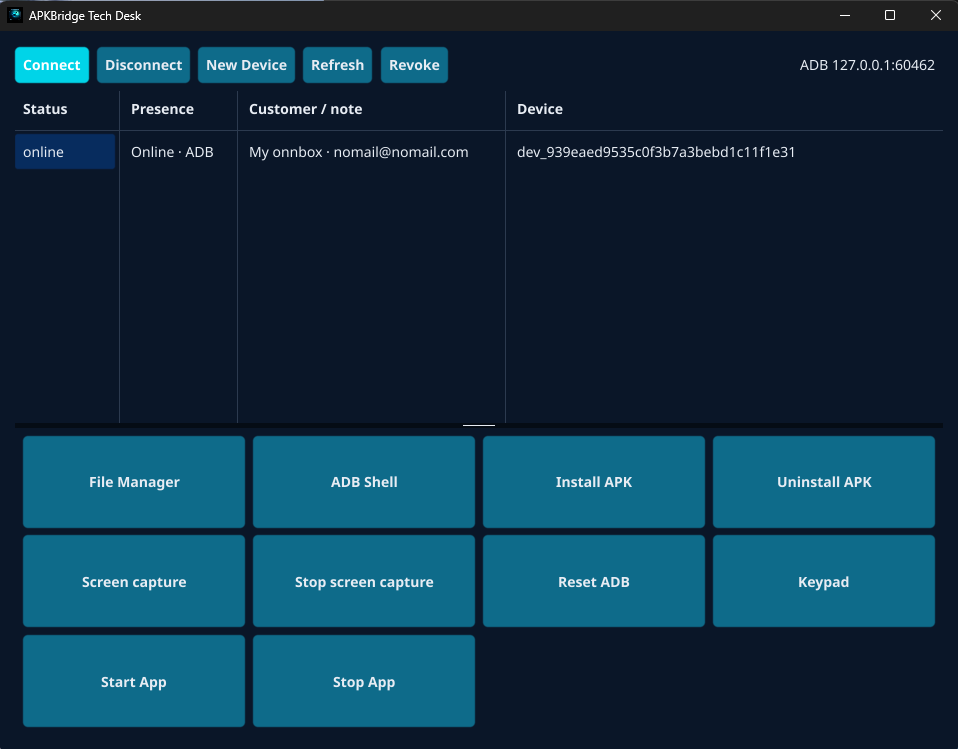
Download Tech Desk for Windows, then follow this setup flow to onboard each customer device.
Tech Desk (Windows)
Sign in with your Lab Console credentials to manage devices, install APKs, and mirror screens.
How to Set a Customer Up
- Install and open Tech Desk on your Windows PC, then sign in.
- In the Lab Console, go to Devices and click Add New Device to generate a support code.
- Have the customer install the Android Client from the Client page and open it.
- Guide the customer through enabling Developer Options and ADB/USB Debugging from the Client page instructions.
- Have the customer enter the support code in Android Client and approve the first debugging authorization prompt.
- Verify the device appears as connected in Lab Console, then start support actions from Tech Desk.
Quick Notes
Only ask customers to approve debugging for trusted support sessions.
For Fire TV and Fire Stick, ensure ADB Debugging is ON.
Need account access? Open Lab Console Login.